
Enable Reports
This article covers how to create custom reports for your Merchello website accessible from the Umbraco/Merchello backoffice. A few sample reports have been provided for you, in order to illustrate the development necessary to generate the reports.
This article assumes you have the Merchello package installed. If you don't, do so now. It is important that the /Merchello source and the /Merchello/Plugin/Reports/SalesReports source are from the same version (github clone/pull) as the Reports are dependent on Merchello.
Install Report Package And View Sample Report
Let's begin with understanding the general report package process. When you grab the Merchello solution https://github.com/Merchello/Merchello, you will see a top-level directory named "Plugin." This is where any Merchello-based plugins live, including the reports. Navigate in to /Plugin/Reports/SalesReports/build directory. You should see a report zip file/package.
In your Umbraco/Merchello backoffice, install this package in the usual method at /Developer/Packages.
You should now see a "Reports" directory in the Merchello package office.
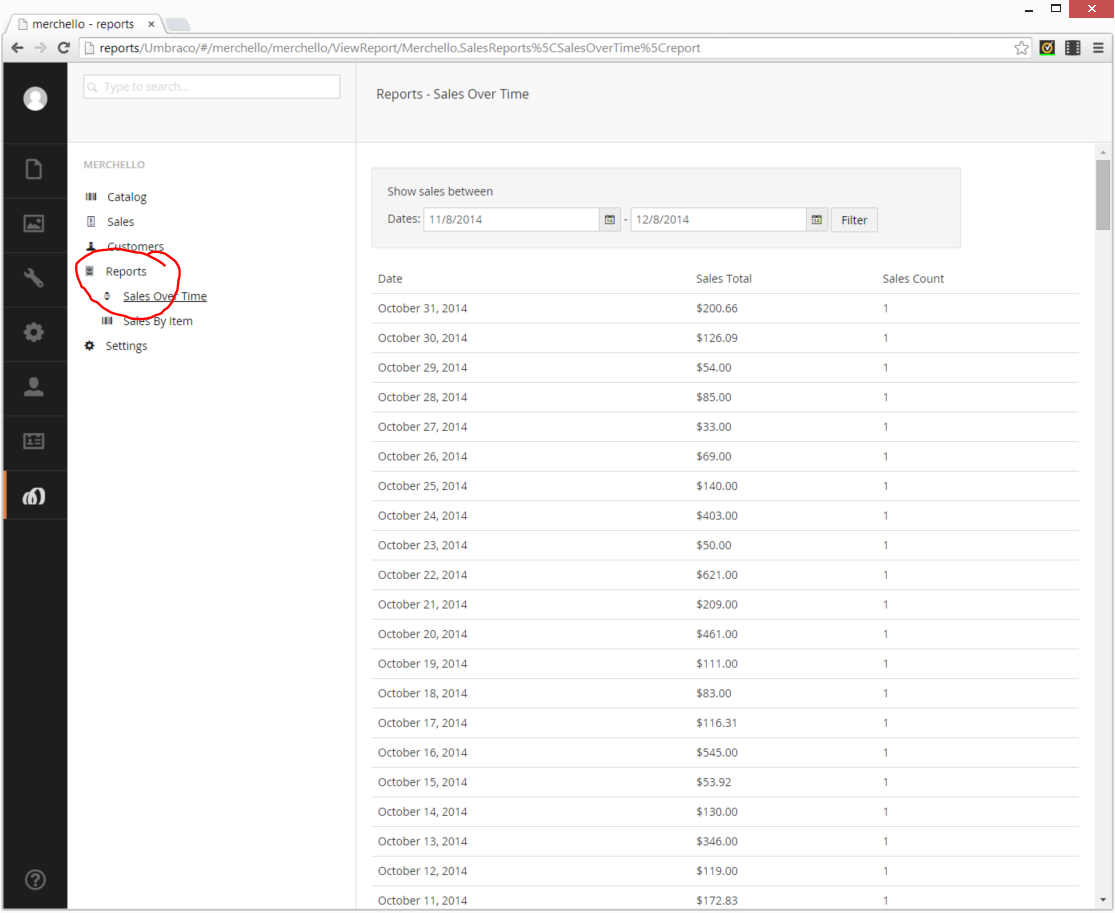
If you select a report, and have the corresponding data, you should see the results such as the picture above. It shows sales (merchInvoice) grouped by date.
Merchello.config
If you don't see the reports submenu, verify that the /App_Plugins/Merchello/Config/merchello.config file in your website has the tree item for reports visibility set to true.
<tree id="reports" title="Reports" icon="icon-file-cabinet" routePath="merchello/merchello/Reports/manage" visible="true" sortOrder="4" />